
Pulse Load Logo Pulse Load Contact Us
Contact Us

Timing Micro-animations for Maximum Impact

Why milliseconds matter. Guidelines for animation duration that keeps users engaged without feeling sluggish or too slow for today’s expectations.

Marcus Lau, Senior UX Animation Specialist

Author

Marcus Lau

Senior UX Animation Specialist at Pulse Load Limited specializing in micro-animation and loading state design for fast-paced Hong Kong web applications.

The Science Behind Milliseconds

Timing isn’t arbitrary. It’s the difference between an animation that feels responsive and one that feels broken. You’ve probably noticed it without thinking about it — when something loads too slowly, you feel impatient. When it snaps into place too fast, it feels jarring.

The sweet spot? It’s typically between 200 and 500 milliseconds. This range feels instantaneous to humans while still giving us visual feedback that something’s happening. We’re not just guessing here — this comes from decades of interface design research and actual user behavior studies.

Key Animation Duration Guidelines

  • Micro-interactions (hover states, button feedback): 100-200ms
  • Loading states (skeleton screens, spinners): 300-500ms
  • Page transitions: 200-400ms
  • Subtle entrance animations: 250-400ms
  • Complex transitions: 400-600ms (absolute maximum)

Skeleton Screens: The 300ms Sweet Spot

Skeleton screens are brilliant because they trick your brain into thinking things are loading faster. You see a placeholder that mimics the actual content shape, and your brain accepts it as progress. This is where timing becomes critical.

A skeleton screen that pulses every 300 milliseconds feels alive without being distracting. It’s breathing. Too fast (under 200ms) and it feels nervous. Too slow (over 500ms) and users notice the actual wait time more. We’ve tested this extensively with apps like delivery services and banking platforms in Hong Kong — the 300ms pulse is where people stop complaining about loading speed.

The animation itself — whether it’s a subtle gradient shift or a gentle fade — should never exceed 400ms. You want users to see the loading state, feel reassured, and then have the real content appear. It’s a three-act play, and timing controls the rhythm.

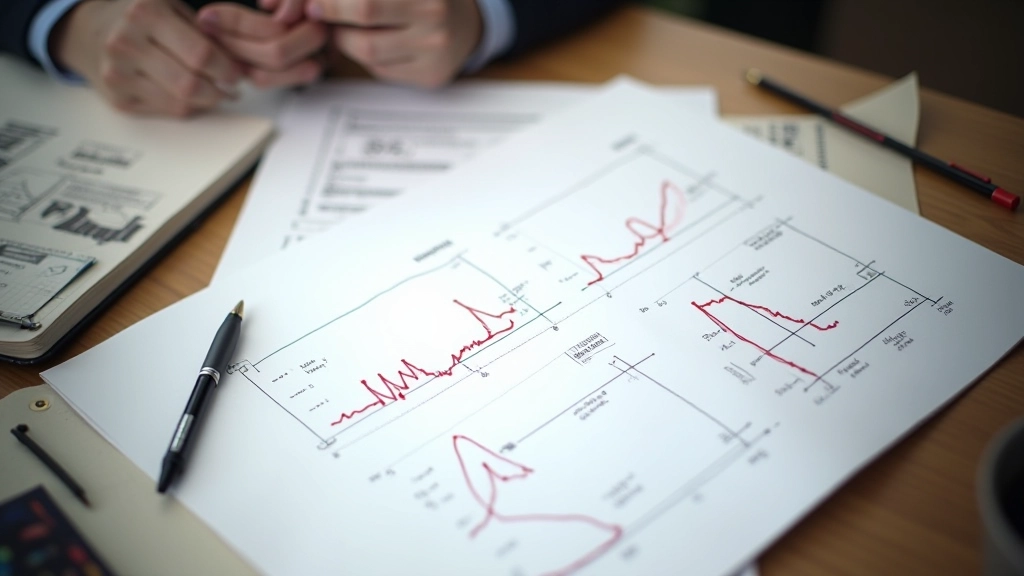
Designer working with animation timeline software showing millisecond-level timing adjustments

Technical Note

Animation timing guidelines are general recommendations based on research and user testing. Actual optimal timing varies by device capability, network speed, and user expectations. Always test with real users on your target devices and network conditions before deployment. What feels smooth on a fast desktop may need adjustment for mobile users or slower connections.

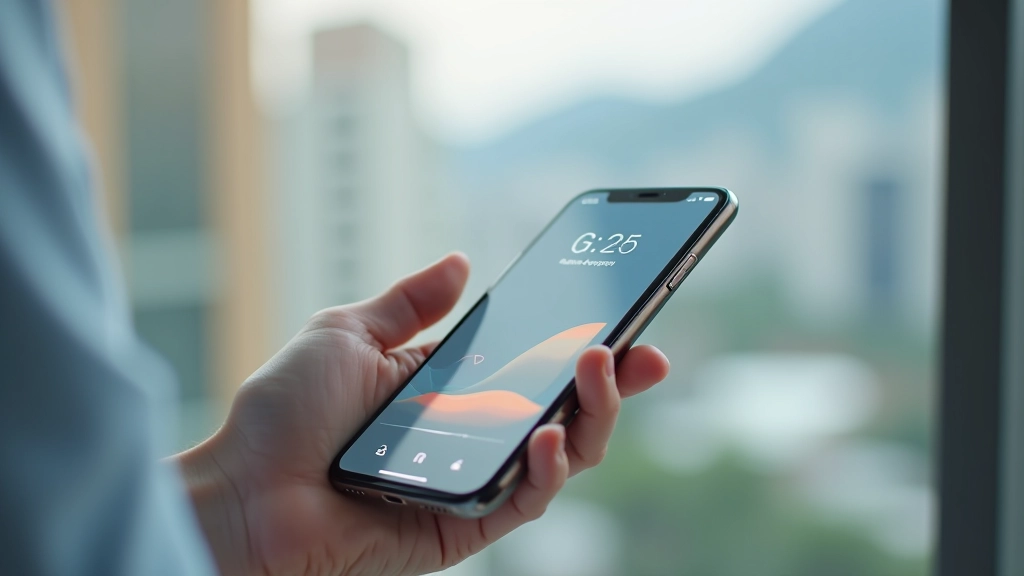
Mobile phone screen showing smooth page transition animation between different app sections

Page Transitions: Keeping Momentum

Page transitions are where people get impatient fastest. You’re asking users to wait while new content loads and renders. The animation itself becomes a distraction if it’s too long. We recommend keeping transitions between 200-350 milliseconds for navigation between similar content types (like scrolling through a product list).

When you’re doing a major layout change (like moving from a list view to a detail view), you can push to 400ms. But don’t go beyond that. Users in fast-paced cities like Hong Kong are accustomed to instant gratification. A 600ms page transition will feel like your app is lagging, even if the actual page load was fast.

One trick: if your actual content load takes longer than your animation duration, overlap them. Start the transition animation while content is still loading. By the time the animation finishes, the content arrives. The user never sees a blank state — they see motion the entire time.

Easing Curves: The Hidden Timing Variable

Duration is only half the story. Easing curves — how the animation accelerates and decelerates — fundamentally change how we perceive speed. A 300ms linear animation feels different from a 300ms ease-out animation, even though they’re the same duration.

Best Easing Curves for Micro-animations

  • ease-out: Makes animations feel faster at the start. Perfect for entrance animations and loading completions.
  • ease-in-out: Feels smooth and natural. Good for hover states and transitions.
  • cubic-bezier(0.34, 1.56, 0.64, 1): Adds a subtle bounce. Use sparingly for celebratory moments.
  • linear: Only for continuous motion (spinners, progress bars). Avoid for entrance/exit animations.

An ease-out curve makes a 200ms animation feel snappier than a linear 200ms animation. That’s why professional designers obsess over easing curves — they’re the difference between an animation that feels polished and one that feels amateur.

Graph showing different easing curves plotted on a timeline with animation duration on X-axis

Putting It All Together

Timing micro-animations isn’t about creating the most impressive visual effects. It’s about respecting user time and attention. In Hong Kong’s fast-paced digital environment, this matters more than anywhere else. Users expect snappy interfaces that don’t waste their time with sluggish transitions or over-animated loading states.

Start with these ranges: 200-300ms for quick feedback, 300-500ms for loading states, 200-400ms for page transitions. Test with real users on real devices. Then adjust based on what feels right. You’ll develop an instinct for it. After a few projects, you’ll stop thinking about milliseconds and start thinking about feeling. And that’s when your animations become truly professional.

The goal isn’t perfection. It’s creating an interface that feels responsive, alive, and respectful of the user’s time. Get the timing right, and users won’t even notice the animation — they’ll just feel like the app is fast.

Ready to improve your animation timing?

Explore Branded Skeleton Screens